Showing posts with label Excel. Show all posts

March 3, 2015

esProc Helps Process Heterogeneous Data Sources in Java – Excel

Generally, Java programmers use poi or other open source packages to read and compute Excel data. These open source packages support low-level programming, which increases the overall learning cost and complicates the operation. But with the help of esProc, Java can avoid these problems.

An example will make the point clearly understood. Read the information of sales orders from the Excel file orders.xls and select sales orders that placed on and after January 1st, 2010 and in which SELLERID is equal to 18. The content of orders.xls is shown as follows:
ORDERID
CLIENT
SELLERID
AMOUNT
ORDERDATE
1
UJRNP
17
392
2008/11/2 15:28
2
SJCH
6
4802
2008/11/9 15:28
3
UJRNP
16
13500
2008/11/5 15:28
4
PWQ
9
26100
2008/11/8 15:28
5
PWQ
11
4410
2008/11/12 15:28
6
HANAR
18
6174
2008/11/7 15:28
7
EGU
2
17800
2008/11/6 15:28
8
VILJX
7
2156
2008/11/9 15:28
9
JAYB
14
17400
2008/11/12 15:28
10
JAXE
19
19200
2008/11/12 15:28
11
SJCH
7
13700
2008/11/10 15:28

Implementation approach: Call esProc script using Java program, read and compute the data in the Excel file, and then return the result in the form of ResultSet to Java program. Since esProc supports analyzing and evaluating expressions dynamically, it will enable Java to process data as flexibly as SQL does.


First, programmers can take the criteria “sales orders that placed on and after January 1st, 2010 and in which SELLERID is equal to 18” as the parameter where and pass it to esProc program. This is shown as follows:

where is a string, its value is ORDERDATE>=date(2010,1,1) && SELLERID==18.       

The code for esProc program is:

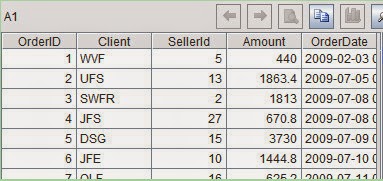
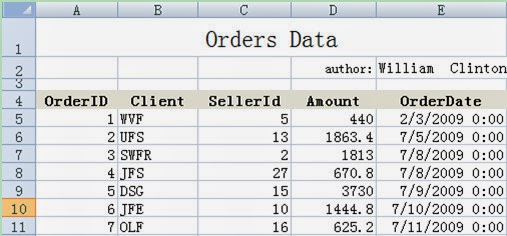
A1: Define a file object and import the Excel data into it. esProc’s IDE can display the imported data visually, as shown in the right part of the above figure. Importxls function can access xlsx files too and can automatically identify the version of Excel according to the filename extension.

A2: Perform the filtering according to the criteria, using macro to realize parsing the expression dynamically. The “where” in this process is an input parameter. In executing, esProc will first compute the expression surrounded by ${…}, take the computed result as macro string value, replace ${…} with it and then interpret and execute the code. The final code to be executed in this example is=A1.select(ORDERDATE>=date(2010,1,1) && SELLERID==18).

A3Return the eligible result set to Java. If the result needs to be written to another Excel file, just modify the code in cell A3 to =file("D:/file/orders_result.xls").exportxls@t(A2). If the criteria are changed, you just need to modify “where”– the parameter. For example, it is required to select sales orders that placed on and after January 1st, 2010 and in which SELLERID is equal to 18, or Client is equal to PWQ. The value of “where” can be written as CLIENT=="PWQ"||ORDERDATE>=date(2010,1,1) && SELLERID==18. After the code is executed, the result set in A2 is as follows:

Call this piece of code in Java with esProc JDBC and get the result. Detailed code is as follows (save the above program in esProc as test.dfx):
          // create a connection using esProc jdbc
Class.forName("com.esproc.jdbc.InternalDriver");
con= DriverManager.getConnection("jdbc:esproc:local://");
// call the program in esProc (the stored procedure); test is the name of file dfx
com.esproc.jdbc.InternalCStatementst =(com.esproc.jdbc.InternalCStatement)con.prepareCall("call test(?)");
    // set parameters
st.setObject(1,"ORDERDATE>=date(2010,1,1) && SELLERID==18 || CLIENT==\"PWQ\"");    // execute the esProc stored procedure
ResultSet set =st.executeQuery();

If the script is simple, the code can be written directly into the program in Java that calls the esProc JDBC. It won’t be necessary to write a special script file (test.dfx):
esultSet set = st.executeQuery(
"=file(\"D:/file/orders.xls\").importxls@t().select(ORDERDATE>=date(2010,1,1) && SELLERID==18 || CLIENT==\"PWQ\")");

This piece of code in Java calls a line of code in esProc script directly, that is, get the data from the Excel file and filter it according to the criteria. 

August 11, 2014

Methods of Accessing Excel Files by R language

There are many ways for R language to access Excel files, but each has its weaknesses. For example, xlsx package has complicated code and supports only Excel 2007; RODBC has too many restrictions, is difficult to understand and unstable and goes wrong strangely. Though the method of saving the file in csv format is relatively common and stable, it operates inconveniently and lacks ability to process multiple files with program. Another method is to extract xml, but the complicated steps and code forbid us to use it.It’s also not ideal to transform the file with a clipboard because part of the operation need to be done manually and we’d rather save the file in csv format.

However, all these problems can be avoided if we access Excel files using gdata package and meanwhile, write to Excel with WriteXLS. Both of the two packages support Excel 2003 and Excel 2007, operate stably, have easy and intuitive code and require no manual work. The following example is used to illustrate the method of accessing Excel with the two function packages.

Target:

There are multiple Excel files of same structure in the directory ordersData. Among these files containing sales order over the years, some are in the format of Excel 2007, others are in the format of Excel 2003. Please load them, compute the total sales amount of each client and write the result to result.xlsx. The following is some of the data of 2011.xlsx:
Code:
library(gdata)                                     
library(WriteXLS)                       
setwd("E: /ordersData")                  
orders<-read.xls(fileList[1])                                         
for (file in fileList[2:length(fileList)]){                         
orders<-rbind(orders,read.xls(file))
}
WriteXLS("result","result.xlsx")                                 

Some of the data of result.xlsx are as follows:
Code interpretation:
1 .The two lines of code library (gdata) and library(WriteXLS)aim to import two third-party function packages, which have read.xls function and WriteXLS function to read and write Excel respectively.
2 .The line of code fileList<-dir()lists all the files in the directory. The following for statement read files by loop and merge data into the data frame orders. If there are other files in the directory, they should be removed using wildcard characters.
3 .This line of code result<-aggregate(orders[,4], orders[c(2)],sum)executes grouping and summarizing, in which orders[,4]represents summarizing column (i.e. Amount) and orders[c(2)] represents grouping column (i.e. Client).
4 .Both read.xls and WriteXLS support the data type data.frame though they come from different packages, therefore, they can coordinate rather well.Besides,read.xls function can automatically identify the format of both Excel 2003 and Eexcel 2007, and is quite convenient to use.
5.All the code is concise and easy to grasp for beginners.

Note for use:
1.Versions
gdata and WriteXLS are not R language's built-in library functions, they are the third-party packages needing download and installation. What’s more, both of them require the Perl environment, so it is particularly important to choose an appropriate version. Through our trials, we find that 2.15.0 version of R language gets along well with 2.13.3 version of gdata and 3.5.0 version of WriteXLS. But something may go wrong if they operate with the newest Perl version and an older 5.14.2 version is thus required. Otherwise the following error report will appear:

Error in xls2sep(xls, sheet, verbose = verbose, ..., method = method,  :
  Intermediate file 'C:\Users\Thim\AppData\Local\Temp\RtmpMHvLZS\file224060624738.csv' missing!

2. Performance
gdata and WriteXLS have no problem in accessing small files, but they perform badly in handling bigger files (maybe because of Perl). For example, it takes 8 to 10 minutes to read an Excel file of 8 columns and 200,000 rows. To achieve a betterperformance, we recommend xlsxfunction package. But, of course, Excel2003 will be of no use in this occasion. In fact,xlsx performs just slightly better than gdata does. Therefore, in order to truly improve performance, it is recommended that all Excel files be transferred into 2007 format and xml files in them be uncompressed and data be read through resolving these xml files.

Alternative methods:

For the problems of version conflicts and poor performance that R language has, we have alternative solutions like Python, esProc, Perl etc. As R language, they can also access Excel files and perform data computing. In the following, we’ll introduce briefly esProc and Python.

esProc integrates the function of accessing EXCEL into its installation package, so it is no need for it to download the extra third-party packages. It can access Excel2003, Excel2007, Excel 2010 and even the older versions. Its code is as follows:
esProc's performance is satisfactory. It takes only 20 to 30 seconds for it to read an Excel file of 8 columns and 200,000 rows.

Python has a rather excellent performance, except that it requires the third-party packages as R language does. Pandasshould have been able to complete the task of accessing xls file easily, but its installation under windows failed (after all, xls files are mainly produced under windows). Finally, we succeeded in performing this operation by using packages of both xlrd and xlwt3. Unfortunately, the two packages support only Excel2003 and produce much more complicated code:

import xlwt3
importxlrd
fromitertools import groupby
from operator import itemgetter
importos
dir="E:/ordersData/"
fileList =os.listdir(dir)
rowList = []
for f in fileList:
book=xlrd.open_workbook(dir+f) #open read-only workbook by loop
sheet=book.sheet_by_index(0)
nrows = sheet.nrows
ncols = sheet.ncols
for i in range(1,nrows):
row_data = sheet.row_values(i)
rowList.append(row_data) #all records are appended to rowList
rowList=sorted(rowList,key=lambda x:(x[1])) #sort the data before grouping
result=[]
for key, items in groupby(rowList, itemgetter(1)): # group using groupby function
    value1=0
forsubItem in items:value1+=subItem[3]
result.append([key,value1]) #merge the summarized result into 2D array in the end
wBook=xlwt3.Workbook() # create a new writable workbook
wSheet=wBook.add_sheet("sheet 1")
wSheet.write(0,0,"Client")
wSheet.write(0,1,"Sum")
for row in range(len(result)): #write data to the file by loop
wSheet.write(row+1,0,result[row][0])
wSheet.write(row+1,1,result[row][1])
wBook.save(dir+"result.xls") #save the file

It is a far more complicated method than R language.

July 16, 2014

A Code Example for Reading and Writing EXCEL Files with esProc

It is convenient to read and write Excel files with esProc. We’ll illustrate this through an example:
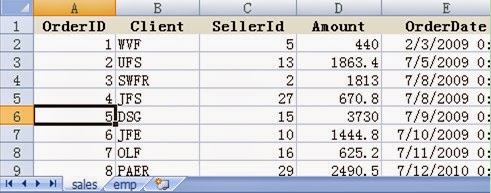
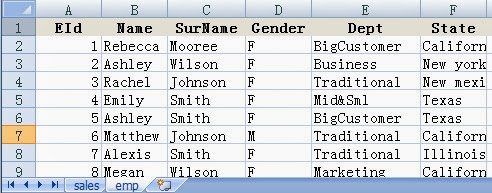
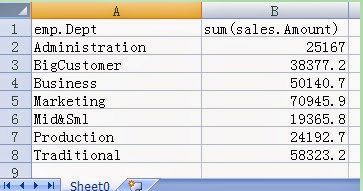
Example description: Read data of orders and sellers’ information list from data.xlsx, compute sales amount of every department according to the two sheets, and enter the result into result.xlsx.
Original Excel File: data.xlsx contains two sheets. The data of orders is shown in the following figure:


Sellers'information list is as follows:


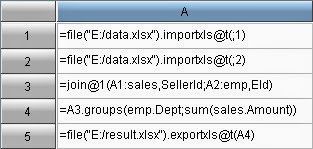
esProc code:


A1-A2:Read the first sheet, data of orders, and the second sheet, sellers’ information list, respectively from the excel file, data.xlsx, and stores them in cell A1 and A2 in the form of table sequence.
A3-A4:First, make a left join of data of orders and seller’s information list according to employee ID numbers, then seek the sales amount of each department by grouping and summarizing. We won’t discuss the algorithm here for it is not important in this example.
A5:Store the result in result.xlsx.


result.xlsx


Code interpretation

  • Column name
importxls uses function option @t, which shows that the first row of sheet is regarded as column name of esProc table sequence. For example, click cell A1 and the values of its variables can be seen:


Therefore, the algorithm that follows can access data in A1 using column names directly.

  • Sheet name
The above code reads data according to the sheet’s serial number, but sometimes, clients prefers sheet name. This demand can be realized in esProc. For instance, “sales” is the sheet name for data of orders. In this case, reading by names will be realized only by changing the sheet’s serial number in A1 into sheet name directly. See below:
file("E:/data.xlsx").importxls@t(;”sales”)


The same will do when writing a result into a file. Say, we want to export result in A4 to a sheet named summary, the code is:
file("E:/result.xlsx").exportxls@t(A4;”summary”)

  • Scope of data
The above code is to read data from the first row of sheet to the end by default. In reality, however, we are often confronted with cases that a portion of the data is to be read. As shown in the following figure:


Importxls function defines the scope of row numbers waiting to be read. Say, reading from the 4th row, which could be written as:
file("E:/data.xlsx").importxls@t(;1,4)
Reading from the 4th row to 1000th row, which could be written as:
file("E:/data.xlsx").importxls@t(;1,4:1000)
Column numbers for reading can also be defined. Say, three columns OrderID, SellerId and Amount are to be read, the code for this could be:
file("E:/data.xlsx").importxls@t(OrderID,SellerId,Amount;1)
Or read by column numbers:
file("E:/data.xlsx").importxls@t(#1,#3,#4;1)


Extension:
With for loop statement, esProc’s can read and write Excel files in batches.
With parameters and macros, esProc makes computations based on Excel data source more flexible.
By providing computations of multiple data sources, esProc is able to do hybrid computation of database, text files and Excel, as well as data migration.


June 6, 2013

Intelligent Formula Copy Brings Flexible Spreadsheet Calculation

Spreadsheet is popular with business users for its simplicity and usability. But it is a pity that some common computations are still tough to solve with spreadsheets. The inter-row computation of summary value is such tough problem.


According to the data of order below, how to calculate the rate of sales increase in each month?


 Obviously, the rate of increase in February should be (D58-D2)/D2, which is a typical inter-row computation. The tough problem for traditional business spreadsheet software is that the traditional business spreadsheet software only allows for manual formulas entering. Copying or dragging formulas to other cells will only lead to the wrong result. For example, copy a formula to the cell of March, as shown in below figure:


75-fold increase? Obviously wrong! The correct formula should be (D113-D58)/D58, while the resulting formula by copying is (D113-D57)/D57. The reason for this phenomenon is that the traditional business spreadsheet software only allows for the rigid formula-pasting based on the relative positions, lacking the intelligent adjustment mechanism.

Obviously, if the data volume is huge, entering all formulas manually will be such a pain and error-prone.

Then, let’s talk about esCalc. As brand new business spreadsheet software reputed for great computing capability, esCalc is highly expected on this problem.

The same data is shown below:

In esCalc, you only need to input the formula once to solve this problem! For example, enter (D58-D2)/D2 for February, and the result is shown below:


No doubt you’ve seen that all computations are finished by entering the formula for once. No need to copy or adjust the formula. Take the formula for March for example, it is (D113-D58)/D58, just the same as I expected.

esCalc boasts an unique homocell model which arranges cells not in a simple relative positions, but in an auto-established business association. The immediate benefit is that the formulas will be copied automatically, that is, the formula will be copied and pasted to the cells at the same business level automatically. In the above-mentioned case, for the March, April, and February bands, the respective cell in the respective summery row can be regarded as the homocells to each other. Therefore, the formula written in the cell of February will be copied and pasted to the corresponding cells of March and April.

Needless to say, such copying is not the migration of the relative positions in the traditional business spreadsheet software. This is a kind of Intelligent Migration, for example, migrate the formula for February to the homocell for March, as mentioned above.

Through the auto-pasting and intelligent migration of formulas, esCalc can relieve the great amount of manual work. Because it is implemented automatically, the possibilities of errors are also reduced greatly.

Seeing is believing. The computational capability of esCalc, as legend has it, is truly powerful. Let Excel trembles at esCalc!

May 30, 2013

Desktop BI Helps to Meet Instant Business Analytics Demands


Data computing & analytics software (DCAS for short) is used for processing and studying on various data to get the valuable result. For example, according to the order details, calculate and find the goods whose sales growth rate in the recent 3 years is greater than 20%.

The data source of DCAS is usually the structured data, such as, database, txt file, and spreadsheet. The calculation methods include filtering, grouping, summarizing, sorting, comparison, and discovering the correlation. Similar to ERP, CRM, Reporting tools, Dashboard, OLAP, and ETL, DCAS is also a type of BI.


Desktop BI refers to the BI tools running on the desktop environment, almost without any supports of server. They usually only provides the core BI functions and requires less dependencies on the technical environments. There is an interesting phenomenon: most DCAS tools belong to the Desktop BI, including Excel which holds the largest market shares in the sector of commercial BI tools, R project which ranks the first in the open source software market. Similar examples also include StataCorp Stata, Raqsoft ES series, IBM SPSS, and MathWorks MATLAB, etc.

Is this a coincidence? Compare their features and you can clearly understand the root cause of this phenomenon.

If you ever read the article of What Role Desktop BI Plays, you should know that Desktop BI is characterized by the below features:

l  Lightweight BI tools: Desktop BI neither explores much about the business details directly nor provides a great number of modules to give the ready-to-use answer. Usually, a work process is required to solve a problem.
l  Quicker problem solving: Focusing on BI, the Desktop BI does not require the technical assistance and is ideal for solving the complex problems quickly.
l  Most Desktop BI users are business-oriented, such as the accountants, banking account manager, business analyst, and stock analyst.
l  Self-service and Independence: Desktop BI is usually used by users to complete the BI task independently.
l  Low hardware requirement: Desktop BI is a desktop application with low hardware requirements.

Then, let’s check the features of DCAS:

To address the temporary needs

DCAS is usually used to address the temporary needs, such as the RStudio or esProc computation: For those clients accounting for top 50% of the total sales last year, whose ranks increased this year? The clients’ sales are usually already stored in the business systems and may have been ranked, because these data is frequently used. But for the data not for daily use and only be used in specific occasions, such as “clients accounting for top 50% of the total sales” and “year-on-year comparison based on rankings”, they are usually not available.

The data to be frequently-used can usually be predicated in the early stage of BI system development. The ready-to-use module can be built with Solution BI tools such as the Report Tools, Dashboard, and OLAP. For example, the Dashboard of QlikView is quite fit for the above-mentioned client sales ranking or even the sales ranking.

For the data that is seldom used, since it is usually hard to predicate and less possible to use, the cost is quite high to build all means to get these data into the ready-to-use modules. Therefore, we need to conduct the temporary computation. The Desktop BI refers to the lightweight tools that do not explore into the business details. Although Desktop BI tools do not provide the ready-to-use module to get the answer, they can be used to address these temporary needs via calculation easily. It can be seen clearly that DCAS is characterized by these features of Desktop BI.
        

To meet the sudden demands

DCAS is often used to address the sudden needs. For example, find the product whose sales values are rising in 5 consecutive weeks through rapid calculation in Excel or esCalc, so as to launch the marketing campaign aimfully. Such needs are pressing since the correct results must be calculated out in limited time. In order to achieve the goal of rapid calculation, DCAS shall allow for the full control by users, especially the Business experts must be capable to act independently, and the DCAS functions must focus on the BI sectors. These are just the Desktop BI features.

On the contrary, Solution BI like SAS or SAP usually requires the collaboration between business personnel, DBA, SQL composer, Web administer, programmer, report script developer, and experts in several areas. In addition, they also need going through a series of work processes like the requirement management, departmental approval, resource provision, developing, and responding. The timeline is completely not guaranteed at all, and thus it is not fit for addressing the sudden needs.

What-if method

It is always easier to solve the BI problem with clear computational goal. However, the complex problems are always abstract and ambiguous. To address them, DCAS requires the what-if analysis method. For example, you can resort to RStudio to find the reason for the current climbing complaint rate. To solve such ambiguous problem, we need some reasonable assumptions. For example, the new product debut gives rise to the laggard after-sales, product quality drawback, and after-sale platform failure. These assumptions are the decomposition of goal, that is, decomposing the ambiguous and great target into several simple and clear small goals. Through validating and calculating several simple and clear goals, the complex, ambiguous and great goal can be solved.

The learned and experienced business expert is the key to what-if analysis in determining: what factors are related to the goal? Of these factors, which factors cover all possibilities and do not overlap mutually? Which factors can be verified explicitly? Which factors can be further divided? What are the weights of these factors? Which are highly possible and which are relatively easier to verify? To make the correct judgment on these questions, you may need the in-depth business understanding. Therefore, DCAS tools must be business-oriented, such as esProc. Being business-oriented is just a feature of Desktop BI.

Individual creative work

The labor can be divided into two types of the repetitive work and the creative work. In BI sector, the repetitive work refers to those problems that can be solved through teamwork or collaboration between multiple persons, for example, the commonly-used reports in enterprise, OLAP model tailored for specific industry, and classic correlation analysis. They are in the scope of Solution BI conventionally. But the creative work is quite another thing. For example, use RStudio or esProc to find the new product with the greatest market potential.

For the creative work, no standardized and existing solution. The creative work requires the rich expertise of business experts and computation, and DCAS is really good at such computation. Different experts may see from different perspectives and be in different positions, take different analytical methods, and reach different conclusions. Therefore, their respective process cannot be reproduced. Such calculation is soaked with the strong personal style, being related to the individual background, work experiences, and business preferences of business experts. It is the typical creative work by individuals. The collaboration will backfire and hinder the user creativity.

Therefore, DCAS is usually adopted by users independently as a type of typical Desktop BI.

Ability of expressing the business

Ability of expressing the business is the ability to convert the business jargons into the computer languages. Unlike other BI tools, DCAS users are usually required to analyze the complex goal, which demands the creative work on the basis of a strong business background. In view of this, we can conclude that the core ability of DCAS is to express the business ideas and plans efficiently and cost-effectively, which is an important criterion to discriminate the good DCAS tools from the bad ones. This core ability includes providing the friendly UI, the business-oriented syntax rule, the intuitive and easy-to-understand formulas, and the free analytical style. For example, with esCalc, merge the basic salary, performance, attendance, and multiple spreadsheets into a practical salary sheet according to the No. of employee.

So, we can say that performance is not the top priority for DCAS. The core features of Solution BI like multi-core parallel computing, cloud, and cluster computing can boost the performance only, but not the ability of expressing the business. These features may backfire, distracting users from reaching the business result and even bringing about a bad impact on the correctness of computational results.

In addition, the normal PC can offer the more than enough computational capability. Even the CPU released 5 years ago - Intel i7 - can support more than 8GB memory and are still powerful enough for running almost all DCAS. In fact, not having to rely on servers, most computation and analysis problems can be solved on PCs that are believed to provide only the relatively low performance nowadays. The vast majority of DCAS belongs to the Desktop BI. In case any computational problems requiring a higher PC performance are encountered, DCAS tools, for example R and esProc, can also handle them well with its advanced features, though it seldom happens.

Through the above analyses, we’ve found that many features of DCAS are up to the Desktop BI standard. So, we can call it the typical Desktop BI.